We all face problems when we use a number of midi tracks playing lot of different VSTi's. Some VSTi's almost bring your CPU load to shoot 100% usage and halt. "Freeze" feature is the best solution in such condition. Since all virtual instruments use CPU processing for real time sound generation, we can disable them to save CPU usage. Freeze is a feature which allows you to remove the VSTi while you can still hear the sound. You start sequencing as usual using VSTi and midi track as shown below.

After you are done with the track open VST instrument panel and click the Freeze switch on the left as shown below:

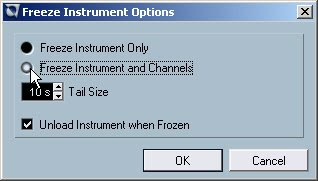
A dialog will open as shown below.

You need to select "Freeze instrument only" and check the box "Unload instrument when frozen". If your sound has long sustain tail then you need to adjust your tail size depending on the length of tail otherwise 10s is enough.

In case you are using a multi channel VSTi, you can freeze instrument along with all the channels as shown below only if you are done with all the channels.
When you press OK button the midi tracks are rendered as wave file and played through the same VSTi audio channel. The midi track gets faded showing that the track is freeze and cannot be played in real time now as shown below.
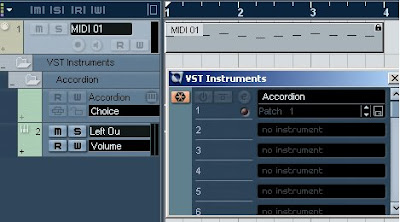
How to unfreeze or enable VSTi Plugin:
If you want to modify or make changes to the tracks you have freeze, you need to unfreeze them in order to enable the real time playback of VSTi through midi track. The track is disabled or faded when it is freeze as shown below and cannot be recorded or played back in real time.
First of all open the VST instrument panel and press the Freeze button as shown below to unfreeze the instrument and enable the midi track.

A dialog will open, press unfreeze as shown below. This will load the VSTi again and enable the midi track again.

After unfreezing you can again start working on the same track for editing or further addition without any problem. It will appear normal as shown below and can be re modified any number of time.


thanks for the info
ReplyDelete